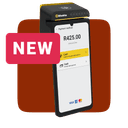


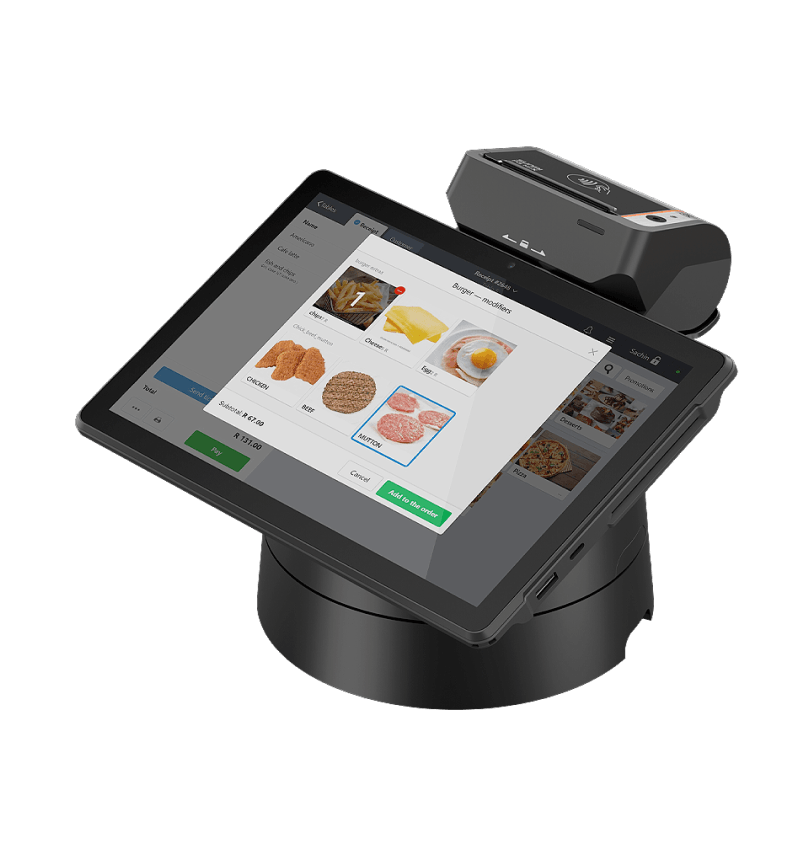


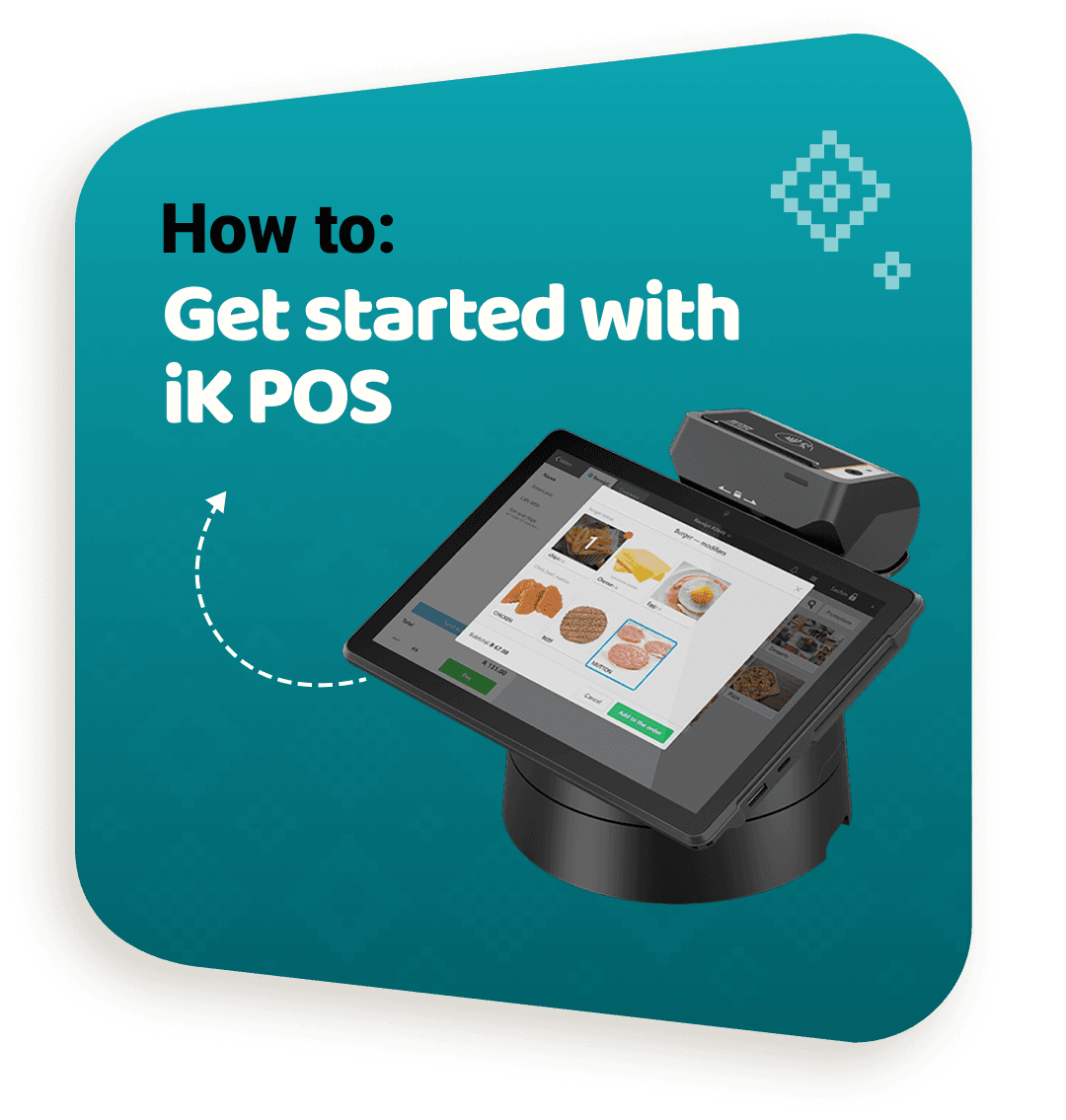

Business package: R660/pm
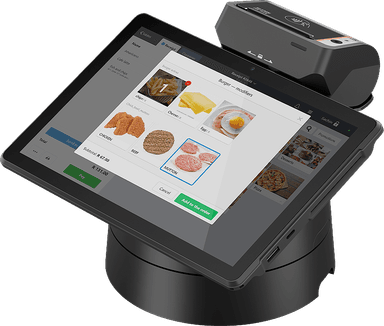
For small stores and kiosks that only need one POS system.
- R660/month excl. VAT
- Includes a Poster software licence.
- Load up to 3 000 retail products or up to 300 cafe/restaurant dishes/products
- Inventory checks
- Loyalty programs
- Promotions
- Payroll calculation
- Staff management
- Dish modifiers (Cafe & Restaurant)
- Table floor layout (Cafe & Restaurant)
- Ingredients management (Cafe & Restaurant)

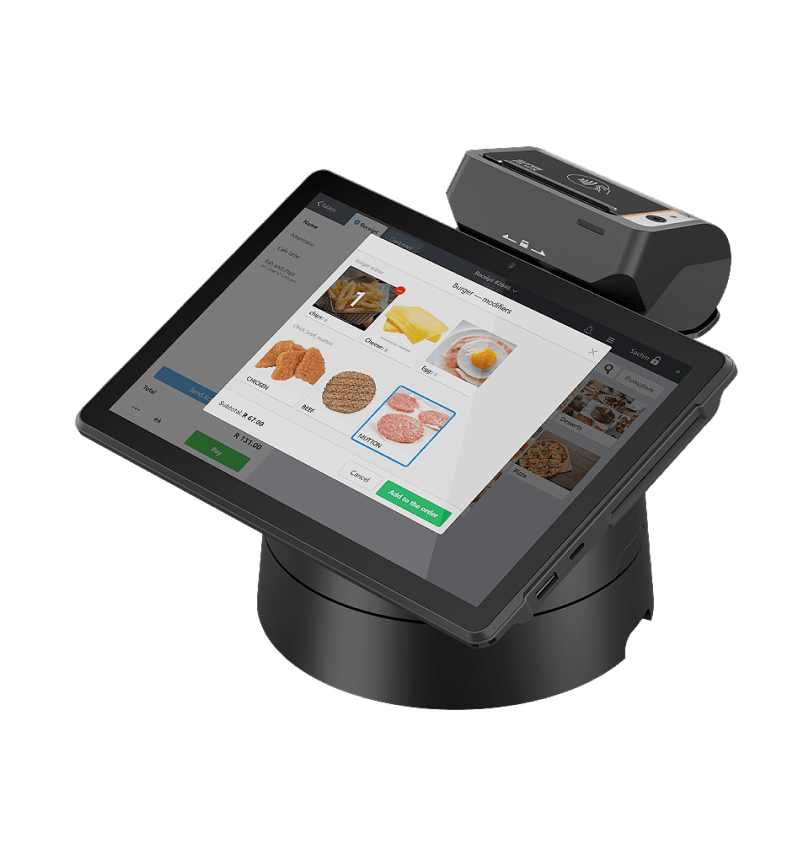
Pro package: R960/pm
For high volume businesses that need more than one POS machine.
- R960/pm excl. VAT
- Get 2 Poster software licenses
- Load up to 15 000 retail products or up to 1 500 restaurant dishes
- Inventory checks
- Loyalty programs
- Promotions
- Payroll calculation
- Staff management
- Dish modifiers (Cafe & Restaurant)
- Table floor layout (Cafe & Restaurant)
- Ingredients management (Cafe & Restaurant)
- Butchery management (Cafe & Restaurant)
Shop iK POS


Trusted by the experts: Mzansi’s business owners


Why trust iKhokha? We’re highly rated on Google, Trust Index, and Hellopeter. We’re also the winner of MTN’s 2023 App of the Year award.

FAQs
Yes, you will find “ABC-analysis” in your management console under the “Reports” tab.
Yes, enable the tick box “Print two receipts on closing an order” in the management console under “Settings / Security”. Please note you may need to sign out from the POS system and sign back in for changes to be updated.
No, you can not accept card payments directly on the device. We recommend using it alongside an iKhokha card machine.
Yes, click on “Security” in your management console under “Settings” to set up your manager's password and the restrictions when required.
Yes, but it depends on the POS system you are using. You may require a Bluetooth barcode scanner if you're using a tablet or any standard USB barcode scanner if the POS system supports it.
Yes, click on Receipt and tick the box “print predictions” under Settings to add your phrase. Please note that if you choose to add more than one phrase, the system will randomly pick one to print at the bottom of the slip.
Click on “Menu / Products” in your management console. This page will display a list of all of your products. Locate a column called “Price”, find the product and click on the price to highlight and change the price.
Yes, click on “Functions window” and select “Devices” in the POS system. Find the printer that prints the tickets, click on “Settings” above the slider, and enable “Increase font”.
Need help?
Get help instantly on WhatsApp, our chatbot Kelly, or by requesting a callback.
You can also call 087 222 7000 or email support@ikhokha.com